
You've just opened your materials, but the background music stops at the next track. You click back to NetEase Cloud Music, only to see a regional restriction notice. When studying abroad and wanting to listen to music continuously, read the prompts carefully first, then prepare your connection. It is recommended to search for "HiCN" in your app store or browser. New users can enjoy a 3-day free trial. After one-tap acceleration, enter your playlist and keep your focus on the task at hand.
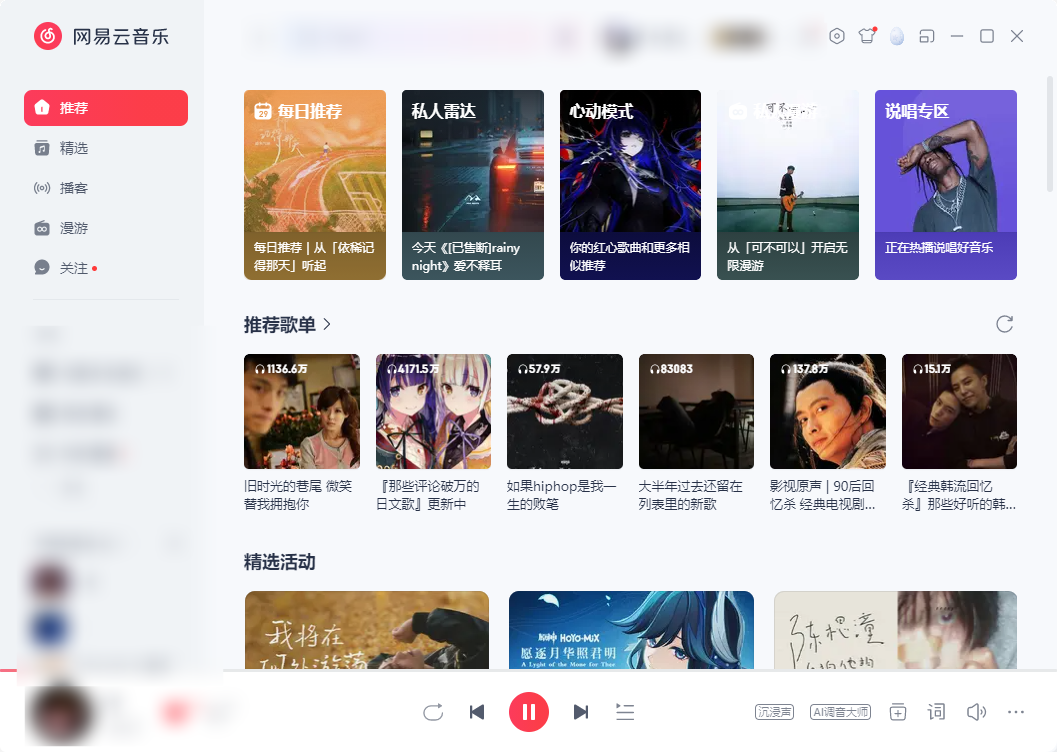
Hear the music first, then start today's tasks.
When preparing to study, select your playlist and confirm it plays correctly before opening your documents or course materials. Don't waste time switching between a dozen windows while waiting for songs to load, only to forget what you were originally supposed to do.
Whether background music is suitable for studying is a matter of personal habit. The goal here is: since you plan to listen, get your account, device volume, and connection sorted out in advance to minimize the need to troubleshoot minor issues mid-session.
For example, if you plan to organize materials for 45 minutes, complete your playback setup before you start. This duration is just an example for scheduling, not a guarantee of study efficiency or continuous playback.
Songs freezing and headphones having no sound require different troubleshooting methods.
If the progress bar is moving normally, don't blame the network right away. Especially after connecting your computer to a monitor, speakers, or Bluetooth headphones, the audio might have been routed to a different output device.
Current Symptom | Where to look first | What to do first |
Progress bar is stuck, player is waiting | Network and song prompts | Confirm internet connection, prepare the connection back to China |
Progress bar is moving, but there is no sound | Volume and output device | Check app volume, system volume, and headphone connection |
Only one specific song won't play | Single track page and version | Read the full prompt and check the current status of the song |
Multiple songs load slowly, search is also slow | Local network and connection back to China | Pause large file downloads, enable music acceleration |
Login or region-related prompts appear | Current page instructions | Handle account or playback issues according to the prompts |
Microsoft's official audio help suggests checking the volume and selected output device. On a Windows PC, you can check the current playback device in system sound settings to ensure audio is outputting to the headphones or speakers you are actually using.View Microsoft official audio help.
Use HiCN to prepare your connection back to China and start with one tap before listening.
HiCN is designed for overseas users' needs to access domestic music and other services. It supports one-tap acceleration, intelligent routing, and smart traffic splitting, matching routes based on apps or scenarios. For those who frequently listen to NetEase Cloud Music while organizing materials, you can make enabling acceleration a fixed routine before playback.
**HiCN supports Windows, iOS, Android, and routers, with a 3-day free trial for new users.** For listening on a computer, use the Windows client; for mobile, download the corresponding client from the app store. For router models and configuration, follow the instructions on the official website or consult customer support.
HiCN also supports high-speed dual-path concurrency, transmitting data through two independent network channels to reduce jitter and improve the connection experience required for continuous playback. It is used for network optimization; song status, account requirements, and audio output issues still need to be handled separately.
How to start on a Windows PC
1. Search for HiCN in your browser or visit theHiCN official website, download the Windows client, and register/log in.
2. Enable the 3-day free trial for new users and accelerate with one tap.
3. Open NetEase Cloud Music, confirm your account, and start playing your playlist.
4. Once the music starts playing normally, begin your material organization. If the connection is abnormal, record the prompt and the time it occurred, then contact human customer support.
Mobile users can search for HiCN in the app store, select the music scenario, and accelerate with one tap before entering NetEase Cloud Music. New users get a 3-day free trial; start with your usual background music scenario without needing to study complex settings first.
HiCN provides 24/7 human technical support. When reporting connection issues, specify your location, device, network type, and whether it's a song-skipping delay, slow search loading, or a connection interruption, so support can better understand the situation.
If the regional prompt persists, keep the information for further processing.
If a specific song shows a clear regional restriction prompt, try re-entering the song page after one-tap acceleration to see the actual playback result. If the prompt persists, follow the platform's current instructions or customer support's reply; it cannot be guaranteed that every song will be restored.
You can also observe if other songs are working normally. If the entire playlist is waiting, keep checking the network; if only one specific song is abnormal, record the song title, artist, album version, and the full prompt to focus on that track's status.
Don't delete songs that are temporarily unavailable from your favorites immediately. Keep the version information, choose content that can currently be played to continue your schedule, and handle specific issues later.
Keep only one main playback device for background music to make troubleshooting easier.
When both your phone and computer have the player open, confirm which one you want to listen to. Ensure the target device completes the connection, playback, and audio output, and pause other devices as needed to avoid confusion during troubleshooting.
Enabling HiCN on your phone does not mean your computer will automatically get the same connection effect. Usually, you need to complete acceleration on the device you are actually listening on. When using multiple devices simultaneously, check the device and concurrency rules of your current plan.
Once prepared, move non-urgent large file downloads or syncs to another time. When an anomaly occurs, follow the table to find the corresponding direction; you don't need to reinstall the app every time.
What are the common issues when listening to NetEase Cloud Music while studying abroad?
Is no sound always a regional restriction?
Not necessarily. If the progress bar is moving normally, first check the volume, headphones, and output device. If the progress bar is stuck or there is a clear text prompt, then continue to check the song status and connection.
Does enabling HiCN guarantee that all songs will play?
HiCN is used to optimize connections back to China. You can accelerate with one tap and enter the target song to check the result, but it cannot guarantee that all songs will be playable. Persistent platform prompts should be handled according to official instructions.
Do I need to select a route manually when listening to NetEase Cloud Music on a computer?
Just open HiCN, enable one-tap acceleration, and enter NetEase Cloud Music. For connection issues, you can explain your location and device situation to human customer support.
If acceleration is on for my phone, does my computer need a separate connection?
Usually, you need to complete the connection on the device you are actually listening on. Windows PCs can use the corresponding client; when using a router solution, confirm the specific configuration and coverage.
Can I try it for free before deciding on a plan?
New HiCN users can enjoy a 3-day free trial. Start your trial during your usual background music time; subsequent plans are subject to what is currently displayed in the client.
Don't let background music take up the time you originally set aside for studying.Search for HiCN in the app store or browser now, start your 3-day free trial, enable one-tap acceleration, open NetEase Cloud Music, and let your favorite playlist accompany you through today's tasks.
Exclusive HiCN member redemption code: 1124