
When accessing domestic websites, apps, office systems, or domestic server games from overseas, common issues aren't just "slow speeds." They can also manifest as unresponsive clicks, frequent video buffering, choppy voice calls, fluctuating game Ping, or even login timeouts.
To resolve these issues, the key is not to blindly upgrade your broadband or repeatedly restart your equipment, but to first determine whether the bottleneck lies in your local network, cross-border routing, the target server, or the application's regional service policy, and then choose the appropriate optimization method.

Quick Conclusion: Follow this order
If you want to perform a quick round of troubleshooting first, you can try the following in order:
1. Connect using an Ethernet cable or stable 5 GHz/6 GHz Wi-Fi, and pause downloads, cloud syncing, and system updates.
2. Test your home broadband and mobile hotspot separately on the same device to determine if the issue is related to your current ISP's routing.
3. Use ping to observe round-trip latency, fluctuations, and packet loss, then use tracert or traceroute to see which segment of the path is significantly slower.
4. Compare local peak and off-peak hours to rule out congestion factors.
5. If your local network is normal but access to domestic services remains consistently high-latency, you can test a network acceleration service optimized for the return-to-China direction.
Note: No tool can eliminate the base latency caused by geographical distance, nor should it promise a fixed Ping value across all regions, ISPs, and time periods. A more practical goal is to reduce detours, congestion, jitter, and packet loss, making the connection more stable and usable.
First, distinguish: High latency, insufficient bandwidth, and regional restrictions are not the same thing
Phenomenon | More Likely Issue | Priority Check |
Long wait after clicking a webpage, slow game operation feedback | High latency or routed path | Ping, routing path, node location |
Average Ping is not high, but screen teleports or voice stutters | Jitter or packet loss | Wi-Fi interference, line congestion, background traffic |
HD video frequently reduces quality or buffers | Insufficient usable throughput | Download usage, evening peak, video routing |
Only a specific domestic app fails to play or indicates regional unavailability | Service regional policy or account permissions | Platform rules, account region, compliance availability |
Slow to open the website initially, basically normal after opening | DNS resolution or initial connection time | Domain resolution, browser cache |
What Is Latency? | How to Fix Latencypoints out that latency measures the time it takes for data to travel from one location in the network to another; it is related to bandwidth and throughput, but it is not the same metric. Therefore, a speed test showing "fast downloads" does not mean that the interaction latency will necessarily be low when accessing domestic servers.
Why is accessing domestic networks from overseas prone to high latency?
1. Geographical distance increases base round-trip time
After an overseas device sends a request to a domestic server, the data must cross a long physical distance, and then the response must be transmitted back. This round-trip process is usually measured by RTT (Round-Trip Time). The greater the distance, the higher the theoretical base latency usually is. Furthermore, a single login, webpage load, or game communication often involves multiple rounds of data interaction, making latency repeatedly perceptible.
2. Cross-border paths may be detoured or pass through many networks
Data does not necessarily travel along the shortest route on the map. The interconnection methods between different ISPs, exit locations, routing policies, and temporary failures can all cause data to pass through more intermediate networks. Even if two users are in the same country, they may have completely different access experiences due to different ISPs.
3. Peak-hour congestion amplifies jitter and packet loss
During local evenings, holidays, or popular events, home broadband, ISP exits, and target services may all be under higher load. Congestion not only increases average latency but can also cause latency to fluctuate. For gaming, real-time voice, live streaming, and remote operations, stability is often more important than the lowest Ping obtained from a single speed test.
4. Wi-Fi and local devices may be the first bottleneck
Being too far from the router, having too many walls in between, using the crowded 2.4 GHz band, having an outdated router firmware, or multiple devices downloading simultaneously can all cause latency and packet loss before the data even leaves your home. Relevant documentation from Cloudflare also suggests using a wired connection when conditions permit and keeping network equipment firmware updated to achieve more consistent connection performance.
5. The target platform or server itself is busy
If only one website, game server, or office system is abnormal while other domestic services are normal, the problem may lie with the target server, access node, or specific server cluster. In this case, changing local DNS, upgrading your broadband plan, or frequently switching devices usually won't directly solve the root cause.
6. DNS affects the speed of "finding the server," but it is not equal to total latency
DNS is responsible for resolving domain names into IP addresses. Resolution anomalies can make the initial connection slow; however, after the connection is established, continuous game Ping or video transmission performance depends mainly on the actual data path. Changing DNS can sometimes improve resolution issues, but it cannot eliminate cross-border physical distance or fix congested lines.
10 Minutes to Complete Basic Diagnosis
Step 1: Establish comparable test conditions
First, fix your device, target service, and test time, and close downloads, cloud drive syncing, system updates, and other proxy tools. Then test separately:
● Home Wi-Fi vs. Ethernet cable;
● Home broadband vs. mobile hotspot;
● The same domestic service vs. a local service;
● Peak hours vs. off-peak hours.
Only change one condition at a time to make it easy to isolate variables. If you change devices, networks, and nodes all at once, the results will be difficult to interpret.
Step 2: Use Ping to check round-trip latency and packet loss
You can first Ping your router's default gateway, then test the target domain: If there is obvious fluctuation or packet loss to the gateway, prioritize fixing the Wi-Fi, Ethernet cable, or router; if the local gateway is stable but the target domain remains abnormal, continue checking the ISP and cross-border path. Different routers have different gateway addresses, which can be viewed in your device's network details; do not simply use someone else's address.
Windows users can run in the Command Prompt:
ping -n 20 target_domain
macOS or Linux users can run in the terminal:
ping -c 20 target_domain
According toping | Microsoft Learn, Ping can check IP layer connectivity via ICMP echo requests and display round-trip time, and can also assist in identifying name resolution issues. When testing, don't just look at the lowest value; it is recommended to observe the following simultaneously:
● Average latency: Reflects overall response speed;
● Difference between maximum and minimum values: A large difference usually means significant fluctuation;
● Packet loss rate: Continuous packet loss will directly affect voice, games, and video;
● Differences between different networks: If a mobile hotspot is significantly better, your home broadband line might be the primary target for troubleshooting.
There is no universal "acceptable Ping" that applies to all services. Web browsing, HD video, remote desktop, and competitive games have different tolerances for latency and jitter, so you should base your judgment on the actual usability of the specific application.
Step 3: Use Tracert or Traceroute to view the path
Windows users can run:
tracert target_domain
macOS or Linux users can run:
traceroute target_domain
tracert | Microsoft Learnexplains that this tool identifies the routing nodes that data passes through before reaching the target by gradually increasing the TTL. Focus on which hop the latency starts to rise consistently, rather than just staring at a single high value at one hop.
A * appearing at a certain hop does not necessarily represent actual business packet loss, as some routers will not respond or will lower the processing priority of ICMP packets. This result is only more valuable when subsequent nodes and the final target also show continuous abnormalities, and the actual application is stuttering at the same time.
Step 4: Keep a record of time, network, and results
It is recommended to record the country or region, local ISP, access method, test time, target domain, Ping results, and routing results. When providing feedback to your ISP or acceleration service support staff, this information is much more helpful for locating the problem than just saying "it's very laggy." Please hide unnecessary private information such as your public IP and device name before sharing screenshots or logs.
Optimize layer by layer, from local to cross-border lines
1. Stabilize the local connection first
● Use an Ethernet cable whenever possible;
● Use 5 GHz or 6 GHz Wi-Fi and stay close to the router;
● Restart your optical modem and router, and check for firmware updates;
● Pause large file downloads, cloud backups, live stream uploads, and system updates;
● Avoid running multiple VPNs, proxies, or acceleration tools simultaneously to prevent routing conflicts.
2. Rule out current ISP line issues
Perform a control test using a mobile hotspot. If the hotspot accesses domestic services significantly more stably, you can further contact your home broadband ISP and provide the time the issue occurred along with the routing test results. If both networks are abnormal on the same target, continue checking the target service or cross-border path.
3. Adjust application settings by scenario
● Video: Lower the quality by one level first to confirm if the issue stems from available throughput;
● Games: Select the domestic server region consistent with your account and friends, and turn off background updates;
● Office: Prioritize using official clients and avoid transmitting sensitive data over untrusted networks;
● Music or Web: Clear abnormal cache and log in again to distinguish between account permissions and network issues.
4. Test return-to-China acceleration only when the local network is normal but the return path is abnormal
The core function of a return-to-China acceleration service is not simply to increase bandwidth, but to select more suitable entry points and transmission paths for connections from overseas to China, reduce unnecessary detours, and perform scheduling between available nodes. It is more suitable for the following situations:
● Accessing multiple domestic services from overseas consistently results in high latency;
● Local websites and apps are normal, but only the return-to-China direction is significantly laggy;
● Domestic server games, real-time voice, or remote office work are sensitive to jitter and packet loss;
● The standard public network path is often unstable during peak hours.
HiCN provides multi-platform clients for Windows, iOS, and Android for scenarios such as overseas access to domestic content, domestic server games, and office tools, and optimizes the return-to-China connection through intelligent route selection and node switching. When using it, you can first perform a control test before and after acceleration on the same device, same network, and same target, and then choose the node and mode based on the actual results.
Acceleration effects will be affected by your country or region, local ISP, target server, time of use, and local network quality. Acceleration tools cannot fix a faulty target server, nor can they replace a stable home network. When involving company systems, financial services, or sensitive data, you should also comply with your organization's security requirements and relevant terms of service.
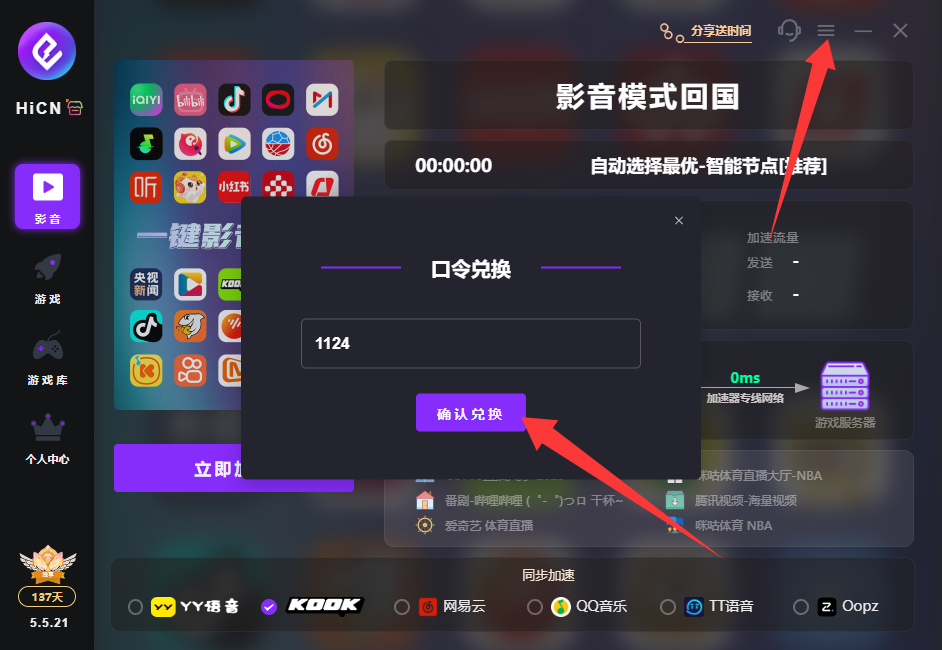
HiCN Return-to-China Accelerator Exclusive Member Redemption Code: 1124
Common Misconceptions
Misconception 1: The more expensive the broadband plan, the lower the Ping must be
Higher bandwidth mainly increases the amount of data transmitted simultaneously. If high latency comes from physical distance, routing detours, or cross-network congestion, simply upgrading your download rate may not significantly lower your Ping.
Misconception 2: A single speed test can determine the quality of a line
A single test is easily affected by instantaneous fluctuations. Results are only representative if you repeat the test at different times and on different networks.
Misconception 3: Changing DNS can solve all stuttering
DNS mainly affects domain name resolution. It may improve initial connections, but it usually cannot directly solve continuous high Ping in games, cross-border detours, or video transmission congestion.
Misconception 4: Running multiple network tools simultaneously will be faster
Multi-layered VPNs, proxies, and accelerators may repeatedly encapsulate data, change routing, or cause conflicts, which can actually increase latency. You should only enable one solution at a time when testing.
Misconception 5: Only pursue the lowest Ping, ignoring fluctuations and packet loss
Real-time applications require continuous and stable data transmission. A line with a slightly higher but stable average may provide a better actual experience than a line that is occasionally very low but frequently spikes or drops packets.
FAQ
How many milliseconds is considered normal for accessing domestic networks from overseas?
There is no uniform answer. Physical distance, ISP, and target city all affect base latency, and games, video, and web pages have different requirements for latency. Rather than applying a fixed threshold, it is recommended to compare average latency, fluctuations, packet loss, and actual experience under the same conditions.
Why is accessing overseas websites fast, but domestic apps are very slow?
The server locations and network paths for these two types of services are different. Accessing local overseas services may only pass through a few regional networks, while accessing domestic services requires crossing longer distances and multiple ISP networks, so the performance can be completely different.
Why is it normal during the day, but latency suddenly increases at night?
Evenings are usually peak times for home network and online entertainment usage. If the abnormality only occurs during fixed time periods and is accompanied by fluctuations or packet loss, the possibility of congestion is high. You can compare it with off-peak tests and keep the data for feedback to your ISP or technical support.
Can a return-to-China accelerator lower latency to a fixed value?
No guarantees. It can reduce some detours, congestion, and jitter by optimizing paths and node selection, but the final performance is still affected by physical distance, local network, ISP, and the target server. A reliable way to judge if it is suitable for you is to perform a trial and control test under the same conditions.
Summary
The most effective way to solve high latency when accessing domestic networks from overseas is to troubleshoot layer by layer: first stabilize the local network, then use Ping and route tracing to determine the location of the problem, and then compare ISPs, time periods, and target services. Only when the local connection is normal but the return-to-China direction remains consistently abnormal do you need to further test a return-to-China acceleration solution optimized for cross-border paths.
If your main needs are domestic server games, domestic video, or cross-border office work, you can go to Android client QR codeto learn about supported platforms and usage methods, and compare the latency, jitter, and packet loss before and after enabling it under the same test conditions. Using repeatable data to make a judgment is more reliable than just looking at the lowest values in advertisements.