YY Voice works, so why is it still laggy when playing games?
For overseas players, "successfully entering a channel" and "being able to communicate stably" are two different things.
Some users find everything normal when using YY Voice alone, but once they launch a mainland server game, teammates' voices start to cut out; others have no issues with daily communication, but experience significant delays during multiplayer team fights or peak evening hours.
This is because a complete gaming session usually requires running multiple network tasks simultaneously:
● Mainland server games continuously sending operation data;
● YY Voice transmitting audio in real-time;
● Game resources being read or updated in the background;
● Chat software constantly receiving new messages;
● Cloud drives and system services automatically syncing;
● Other devices in the dorm occupying the network at the same time.
As long as there is a significant fluctuation in any one of these links, players may feel that the audio or gameplay is not smooth.

Look at the symptoms first, then decide where to troubleshoot
Different problems correspond to different troubleshooting directions. The table below can help players quickly determine whether to check their equipment or adjust their network first.
Actual Symptom | Priority Check Direction | Suggested Action |
No sound when speaking | Microphone and system permissions | Reselect input device, confirm recording permissions |
Can hear teammates, but volume is very low | Output device and playback volume | Check headphones, speakers, and YY volume |
Sound is intermittent | Wireless network and transmission route | Move closer to the router and test acceleration routes |
Teammates hear me with a delay | Network round-trip time | Select optimized routes suitable for domestic applications |
Works fine alone, lags after launching game | Background traffic and device load | Pause downloads, close unused software |
Stable during the day, frequent audio cuts at night | Shared network load | Test other recommended nodes during the evening |
Phone works fine, PC is unstable | PC network or software settings | Compare Ethernet, Wi-Fi, and audio devices |
Multiple devices are unstable | Home or dorm network environment | Check router location and device occupancy |
Change only one condition at a time during troubleshooting. If you change headphones, network, and routes simultaneously, it is difficult to confirm which adjustment actually worked.
Five minutes before gaming, you can complete these preparations
1. First, confirm the microphone is selected correctly
After connecting headphones, webcams, monitors, and external sound cards to a PC, multiple input devices may appear in the system simultaneously.
If YY Voice uses the built-in PC microphone while the player is actually using a headset microphone, it is easy to experience distant sound, excessive noise, or failure to pick up sound properly.
Before entering a channel, you can speak a few words in the sound settings to observe if the input volume changes. Mobile users need to confirm that YY Voice has been granted microphone permissions.
2. Close high-traffic tasks that are not temporarily needed
Voice data volume is not large, but it requires continuous and stable transmission. Once background downloads occupy network resources, audio may become missing or fragmented.
It is recommended to pause the following before gaming:
● Game resource downloads;
● System automatic updates;
● Cloud drive file sync;
● Photo and video backups;
● Large file uploads;
● Live streaming;
● Meeting programs not currently in use.
This not only reduces voice fluctuations but also prevents sudden ping spikes in mainland games.
3. Enter the channel early for a short conversation
Do not wait until the game match is successful to test the sound.
A safer approach is to enter a common channel in advance and communicate with teammates for a few minutes. Confirm that input, output, and push-to-talk are all normal before launching the game.
If YY Voice is already intermittent when used alone, prioritize checking the network; if problems only appear after launching the game, you need to further reduce background occupancy and optimize the route.
YY Voice and mainland games do not have the exact same network requirements
Although both games and voice emphasize real-time performance, their symptoms differ when problems occur.
Item | YY Voice | Mainland Games |
Core Requirement | Continuous sound, stable connection | Timely operation feedback, stable latency |
Common Anomalies | Audio cuts, repetition, delayed speech | Ping spikes, skill lag, character stuttering |
Testing Method | Continuous communication and observing audio integrity | Completing training grounds and multiple normal matches |
Peak Hour Impact | Fluctuations are more easily exposed when multiple people speak | More obvious in team fights and complex scenes |
Optimization Focus | Long-term connection and data continuity | Fast data round-trip and latency stability |
Therefore, when testing the network, do not just look at the latency numbers in the game; also listen to whether teammates' voices are complete and whether your own speech is delivered in a timely manner.
Why do overseas users need to pay attention to transmission paths when using YY Voice?
High local broadband speed only means good performance when connecting to nearby servers. YY Voice and mainland games need to connect to domestic servers, meaning data travels a longer path and may pass through multiple network nodes along the way.
The transmission process may be affected by the following situations:
● Changes in local carrier lines;
● Data transmission path is not direct enough;
● Increase in the number of concurrent users in the evening;
● Congested wireless network signals in dorms;
● Router is too far from the device;
● Current line is not suitable for real-time voice;
● Game and voice occupying network resources simultaneously.
These problems may not make the application completely unusable, but they can cause missing audio, short pauses, and slow speech feedback.
A return-to-China accelerator can optimize routes for overseas connections to domestic networks, choosing more suitable transmission paths for YY Voice and mainland games.
Which gaming scenarios is HiCN return-to-China accelerator suitable for?
HiCN return-to-China accelerator is aimed at daily needs for connecting to domestic networks from overseas, and can be used for YY Voice, mainland games, Chinese music, and domestic video streaming.
It is suitable for the following overseas users:
● Frequently entering fixed YY channels for team play;
● Need to participate in team training or guild activities;
● Voice is prone to cutting out when using YY Voice;
● Network fluctuations after launching games and voice simultaneously;
● High pressure on shared dorm networks in the evening;
● Need to connect to domestic apps on both phones and computers;
● Multiple devices at home need network optimization;
● Hope to reduce the time spent manually filtering routes.
HiCN supports Windows, iOS, Android, and routers.
Windows users can run HiCN, YY Voice, and mainland games on the same computer; iOS and Android users can join channels or use other domestic apps on their phones; for long-term use on multiple devices, you can also configure a router based on your home network situation.
New users get a 3 to 7-day free trial, suitable for testing in common channels, games, and daily gaming hours first.
How to arrange different devices more appropriately?
Device Used | Common Method | Optimization Suggestion |
Windows PC | Running games and YY Voice simultaneously | Connect to a suitable route first, then launch voice and games |
iPhone or iPad | Joining channels on phone or mobile use | Keep network type stable, avoid frequent switching |
Android Device | Voice, games, or domestic apps on phone | Clear background tasks, reduce interference from battery optimization |
Router | Multiple devices used together | Suitable for homes, shared apartments, and multi-terminal environments |
PC plus Phone | PC for games, phone for YY | Check network occupancy for both devices separately |
If the PC configuration is average, you can also try running the game on the PC and joining the YY channel on your phone. This can disperse device load, but both devices still require a stable network environment.
How to test if HiCN helps with YY Voice?
Round 1: Record original status
Without changing devices or Wi-Fi, enter a common YY channel for a few minutes and record:
● Whether there is a wait to enter the channel;
● Whether teammates' voices are complete;
● Whether there are audio cuts when multiple people speak;
● Whether there is a noticeable delay in your own feedback;
● Whether it becomes unstable after launching a mainland game.
Round 2: Enable route optimization
Exit YY Voice and the game, connect to a HiCN recommended route, then re-enter the same channel and game.
Keep headphones, devices, network, and usage time consistent during the test to avoid other conditions affecting the results.
Round 3: Simulate real gaming
Do not just test in an empty channel. Invite teammates to communicate and enter training grounds or normal matches, letting voice and games run simultaneously for a period.
The focus is not on a momentary number, but on whether the entire process is stable.
Round 4: Re-test at different times
Dorm network performance may differ significantly between day and night. If you usually play at night, you should complete the test in the evening.
If a route performs well during the day but fluctuates significantly at night, try other recommended nodes for comparison.
How to choose between three network connection methods?
Network Method | Advantages | Potential Issues | Applicable Scenarios |
2.4GHz Wi-Fi | Larger coverage area | Easily interfered with when there are many surrounding signals | Far from the router |
5GHz or 6GHz Wi-Fi | Usually more stable for short-range transmission | Relatively limited wall penetration | Same room or close to the router |
Ethernet connection | Fewer fluctuations, suitable for PC | Device location is restricted | Fixed location for long-term gaming |
Mobile network | Can be used for temporary comparison testing | Signal and traffic conditions will change | Judging if dorm Wi-Fi is abnormal |
PC players should prioritize using Ethernet if conditions allow; when using wireless networks, choose a stable frequency band instead of just looking at whether the connection icon is full.
Still not ideal after adjusting the route, what else should I check?
Router location
Placing the router inside a cabinet, in a room corner, or next to large appliances may affect wireless signals. Try to place the device in a relatively open area.
PC resource usage
Large games, recording software, streaming tools, and multiple browser tabs running simultaneously may cause audio processing delays. Close temporarily unused programs and compare.
Headphone connection status
Low battery in Bluetooth headphones, being far from the device, or frequent connection switching can affect sound. For long gaming sessions, test with wired headphones.
YY Voice settings
Confirm that input/output devices have not been reset by system updates, and check if push-to-talk and microphone volume match your current usage habits.
Shared network usage
When someone in a shared apartment or dorm is downloading large files, uploading videos, or watching high-quality streams, other devices' network performance may drop significantly.
Operations to avoid when using YY Voice overseas
Do not switch routes frequently during an active match. Route changes may cause YY Voice and the game to reconnect, affecting the entire session.
Do not run multiple network acceleration tools simultaneously. Multiple route settings taking effect at once will make troubleshooting more difficult.
Do not make judgments based on a single short test. YY Voice should be tested with continuous communication, and mainland games should be tested after completing multiple normal matches.
Do not ignore the local wireless environment. Even if cross-border routes are optimized, weak signals, router congestion, or background downloads will still affect the final experience.
Summary
When using YY Voice overseas, issues like audio cutting out, slow channel loading, delayed speech, and voice instability after launching games usually require troubleshooting from multiple directions: equipment, wireless network, background traffic, and transmission routes.
Confirm microphones and output devices before gaming, pause high-traffic tasks, and then test a return-to-China accelerator optimized for domestic directions to identify problems more efficiently.
HiCN return-to-China accelerator supports Windows, iOS, Android, and routers, suitable for overseas Chinese and students who need to run YY Voice and mainland games simultaneously. New users get a 3 to 7-day free trial to experience it with their common channels and actual game environments.
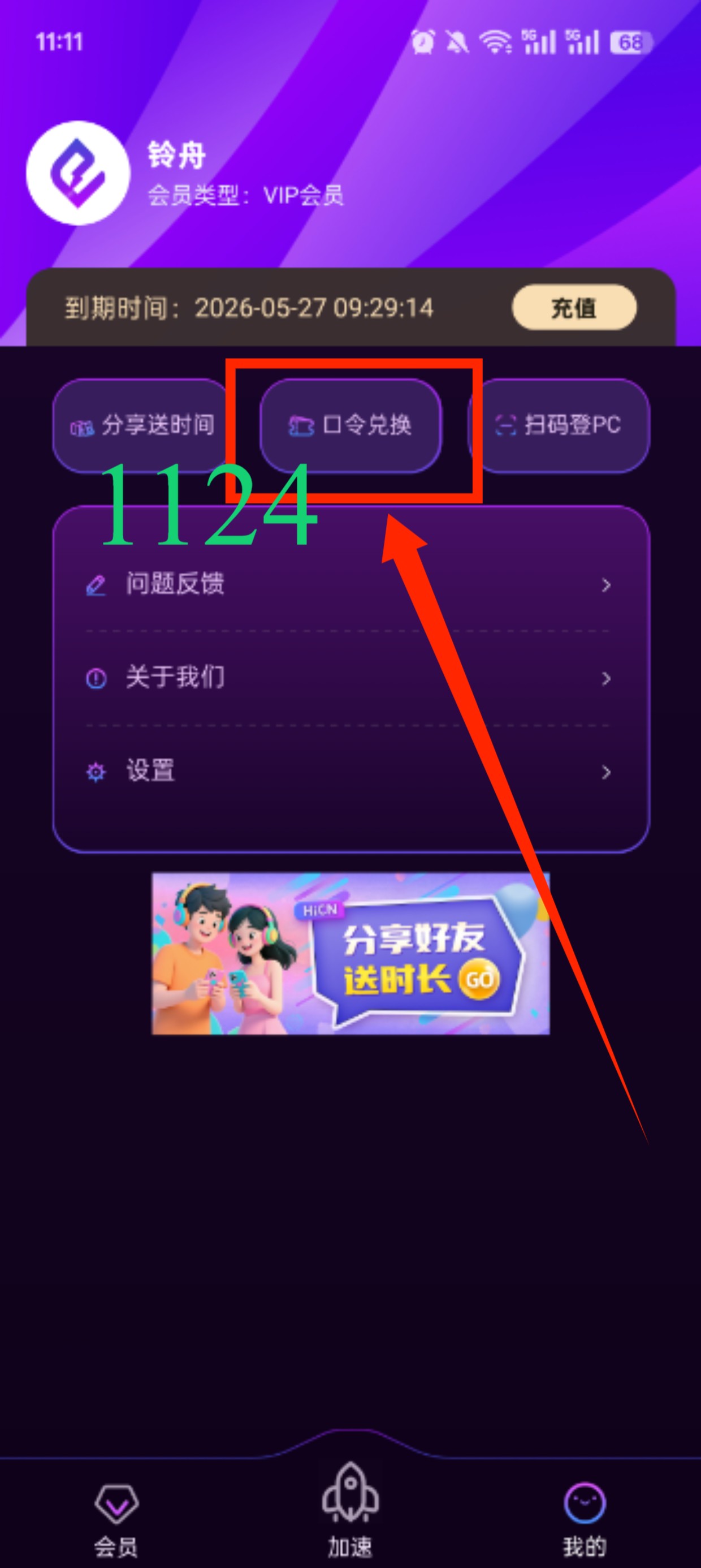
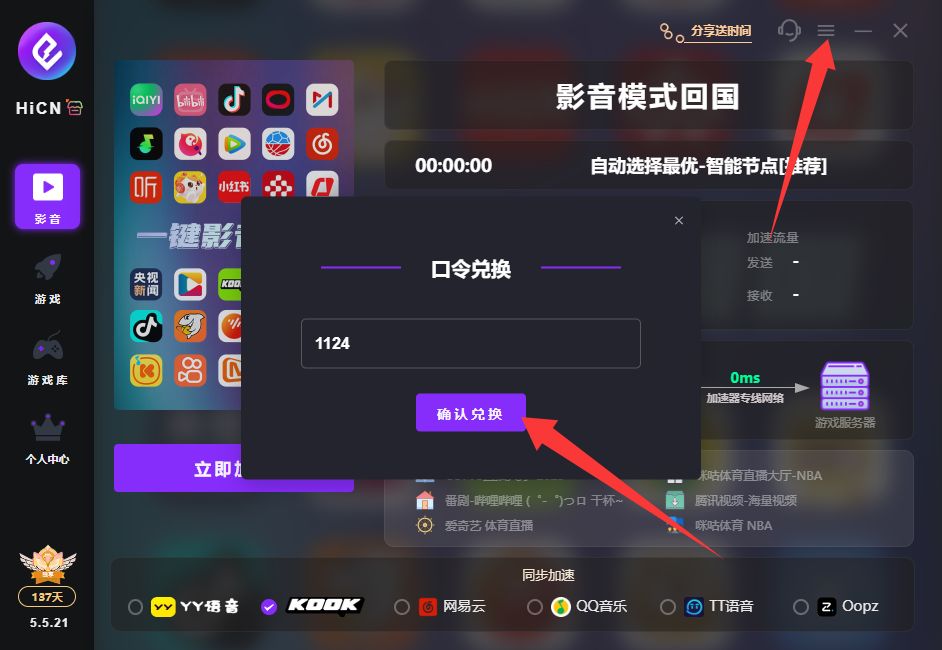
Use code 1124 to claim free HiCN membership acceleration time.